ItemShot / For iPhone · iOS 18 or later

Crop, resize, convert and compress photos on iPhone

Remove unwanted edges, change orientation or correct a tilted photo without starting another project. Keep the original size, enter width and height, limit the longest side or scale the image by a percentage.

Download on the App Store
ItemShot on iPhone — Crop & resize
Real app screens. Select one to see the details.

Crop, rotate, flip and straighten

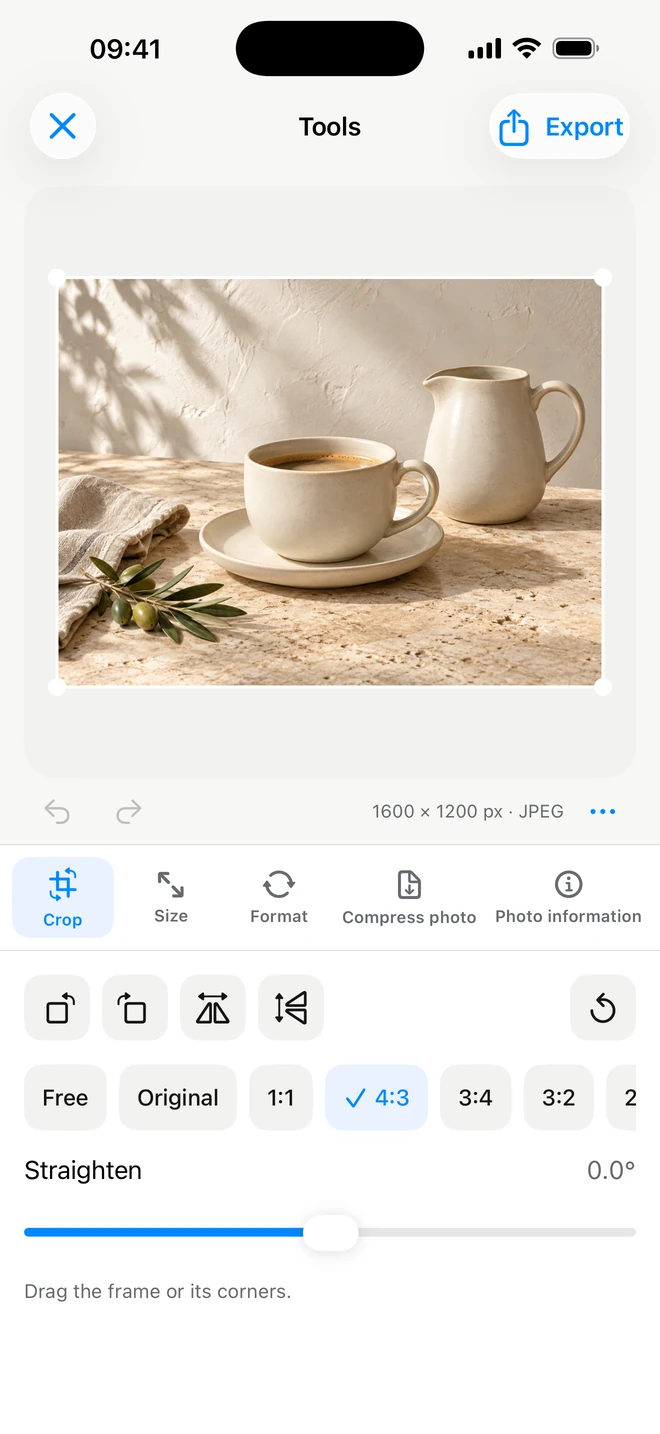
Remove unwanted edges, change orientation or correct a tilted photo without starting another project.

What you can adjust

  • Free crop and aspect ratios
  • Rotation and two flips
  • Fine straightening

Drag the crop freely or choose original proportions, square, 4:3, 3:4, 3:2, 2:3, 16:9 or 9:16. Rotate a quarter turn, flip horizontally or vertically, and fine-tune straightening. Other adjustments stay in place as you switch tools, and recent edits can be undone.

For example

Straighten the horizon, choose a square crop and move on to image size.

Resize in pixels, by longest side or by percentage

Keep the original size, enter width and height, limit the longest side or scale the image by a percentage.

What you can adjust

  • Width, height and proportions
  • Longest side or percentage
  • Fit, Fill and padding

Lock proportions to avoid stretching. When the output ratio differs, Fit keeps the whole picture with padding; Fill covers the area by cropping. Set the padding color, or use transparency for PNG and WebP.

For example

Need a 1200 × 1200 square without cutting off the product? Enter the dimensions and choose Fit.

Four formats with clear purposes

Convert between JPEG, PNG, HEIC and WebP in one editor. New imports select their supported source format automatically.

What you can adjust

  • JPEG / PNG / HEIC / WebP
  • Transparency in PNG and WebP
  • Source format on import

JPEG offers broad compatibility. PNG supports transparency and lossless encoding. HEIC is useful where supported; ItemShot exports it without transparency. WebP supports transparency and either adjustable quality or lossless mode.

For example

Choose WebP for a website or convert HEIC to JPEG for a service that requires it.

ItemShot on iPhone — Formats & compression
Real app screens. Select one to see the details.

Choosing a file format

FormatBest forTransparencyCompression
JPEGPhotos for listings, email and services with broad format support.NoAdjustable quality
PNGTransparent backgrounds, crisp graphics and lossless encoding.YesLossless
HEICA modern compact format when your destination supports it.NoAdjustable quality
WebPWebsite images and services that support WebP.YesAdjustable quality or lossless

Studio exports JPEG and PNG. The four formats below are available in Tools. Tools re-encodes exported images in SDR.

Choose quality or a target file size

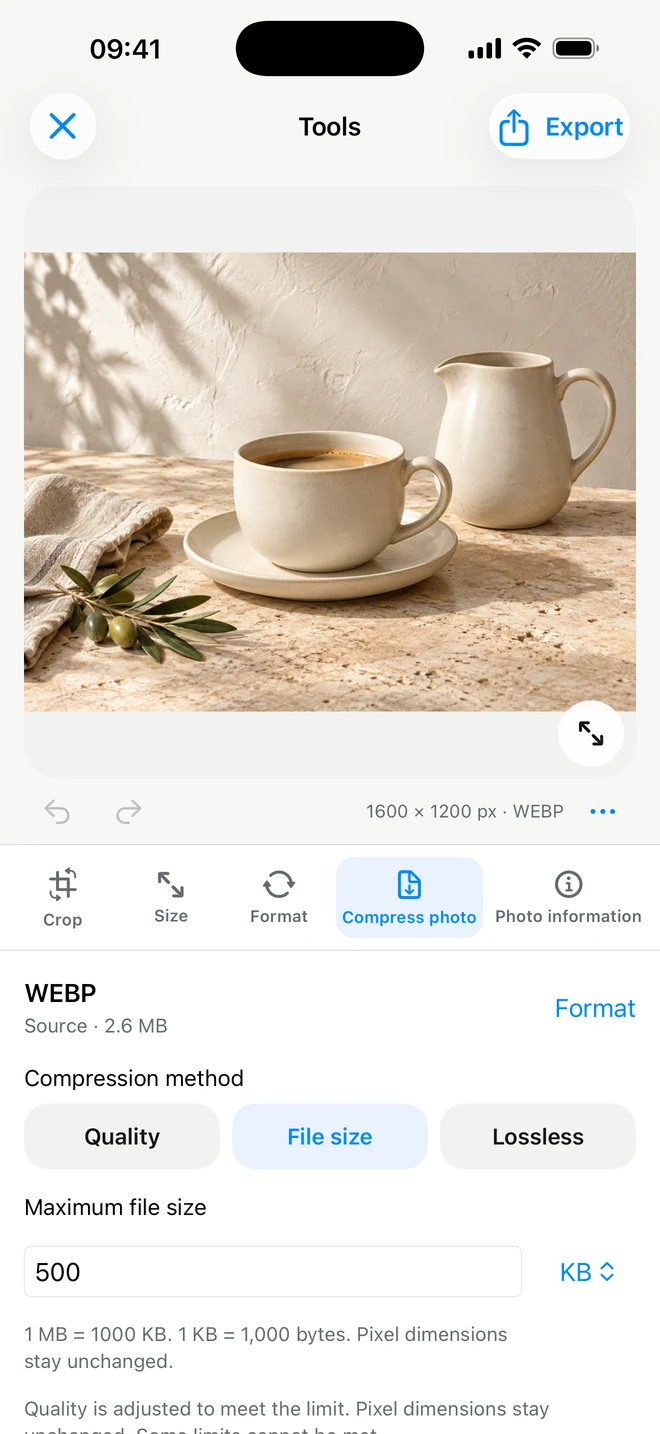
Reduce the file for uploading, sending or meeting a service’s requirements. The target-size field clearly switches between KB and MB.

What you can adjust

  • Compression quality
  • Target size in KB or MB
  • Lossless WebP

Adjust quality for JPEG, HEIC and ordinary WebP. WebP also offers lossless mode; PNG uses lossless encoding. A target size can be requested, but not every limit is achievable. If the file is still too large, reduce dimensions or change format.

For example

Try an output under 500 KB; if necessary, reduce the longest side and check again.

Photo information and a copy without personal metadata

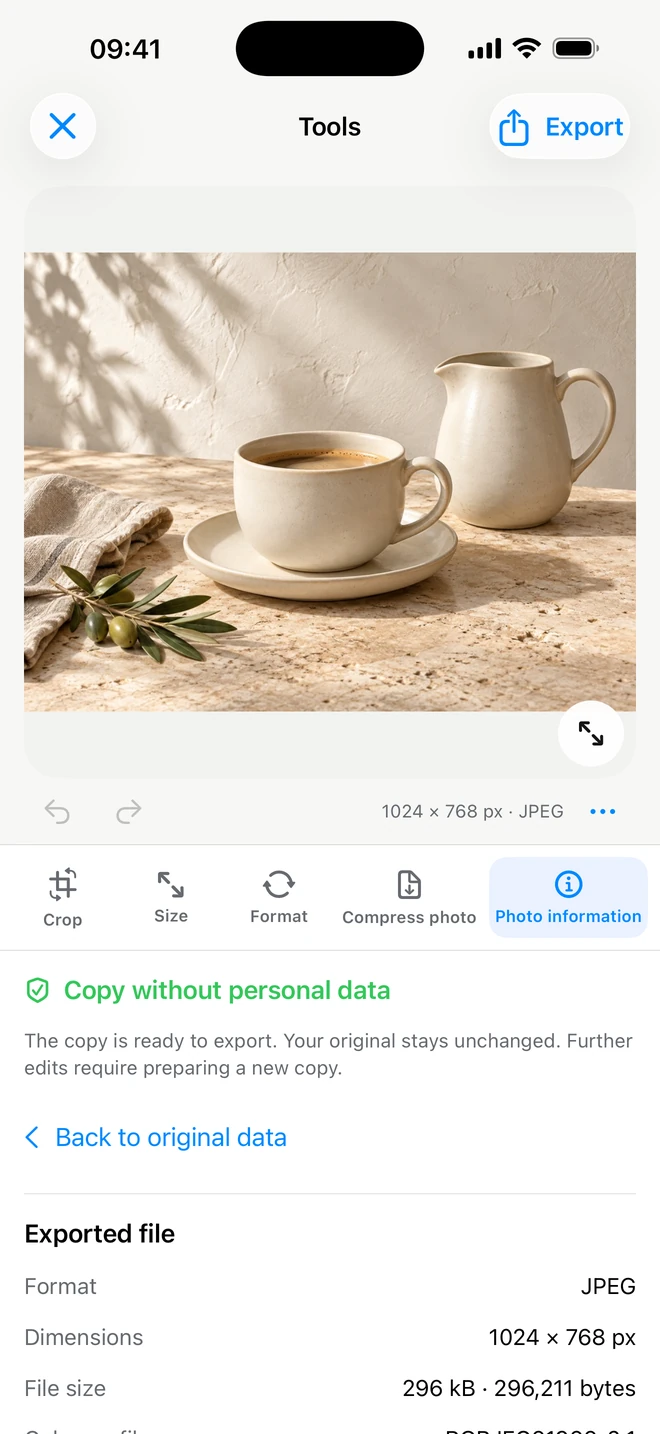
Inspect dimensions, format, file size and available camera, capture and location information. Then prepare a copy without personal data.

What you can adjust

  • Source information
  • Prepare a clean copy
  • Inspect the result’s data

Cleanup removes personal metadata such as GPS and camera details. The app shows information from the prepared copy; final saving happens through Export. The original and saved project source are untouched. This does not erase visible text in the photo.

For example

Before publishing, check for location data and remove personal metadata from the output file.

ItemShot on iPhone — Crop & resize
Real app screens. Select one to see the details.
ItemShot on iPhone — Formats & compression
Real app screens. Select one to see the details.
ItemShot on iPhone — Photo data
Real app screens. Select one to see the details.

Projects, folders and returning to a photo

Keep finished and unfinished work in one library. A label on each card shows whether it belongs to Studio or Tools.

What you can adjust

  • Shared library
  • Folders and names
  • Editable settings

Create folders, organize work and reopen it with its settings. A saved project belongs to a specific photo. In Tools, ordinary project saving and repeat export are free; they are different from Pro settings reusable on new photos.

For example

Organize collections in folders and return to a photo to change its text or size.

Your own styles and reusable settings

Pro

When a successful setup will be useful again, save it with Pro and apply it to new photos.

What you can adjust

  • A named setup you create
  • Apply again
  • Update your settings

A Studio style keeps background, placement, crop, format and shadow; text layers are not included. Tools settings keep size, format, compression, padding and an optional aspect rule. An exact hand-drawn crop rectangle is not transferred to another photo; the aspect rule creates a centered crop. Find Tools saved settings inside the editor and the batch parameters.

For example

Save a shop setup: white background and spacing in Studio, or JPEG dimensions and target size in Tools.
Good questions. Clear answers.

Can I make several adjustments and export once?

Yes. Crop, size, format, compression and metadata settings belong to the same Tools project. Move between them, then export one result.

Is single-photo editing free?

Yes. Single-photo Tools editing, saving and export have no monthly quota. Pro adds batches of up to 10 photos and your saved reusable settings.

Which parts are free?

Studio includes 10 Standard exports per calendar month at up to 2048 pixels. Single-photo Tools editing, saving and export have no monthly quota. Pro adds full-resolution Studio output, advanced editing, batches and saved settings.

Which formats can I export?

Studio exports JPEG and PNG, including transparent PNG. Tools converts between JPEG, PNG, HEIC and WebP. Outputs are re-encoded in SDR.

Make your next photo a better one.

Start with your own photo. Find its best angle in ItemShot.

Download on the App StoreFor iPhone · iOS 18 or later