
ItemShot / For iPhone · iOS 18 or later

Add text, fonts and text backdrops to photos

Add a name, a short feature, a price or an explanation. A project supports up to 24 separate text layers. Give the wording the right character: a quiet caption, a strong headline or a small information label.

Download on the App Store
ItemShot on iPhone — Studio
Real app screens. Select one to see the details.

Several captions in one composition

Add a name, a short feature, a price or an explanation. A project supports up to 24 separate text layers.

What you can adjust

  • Up to 24 captions
  • List and duplicate
  • Position and stacking order

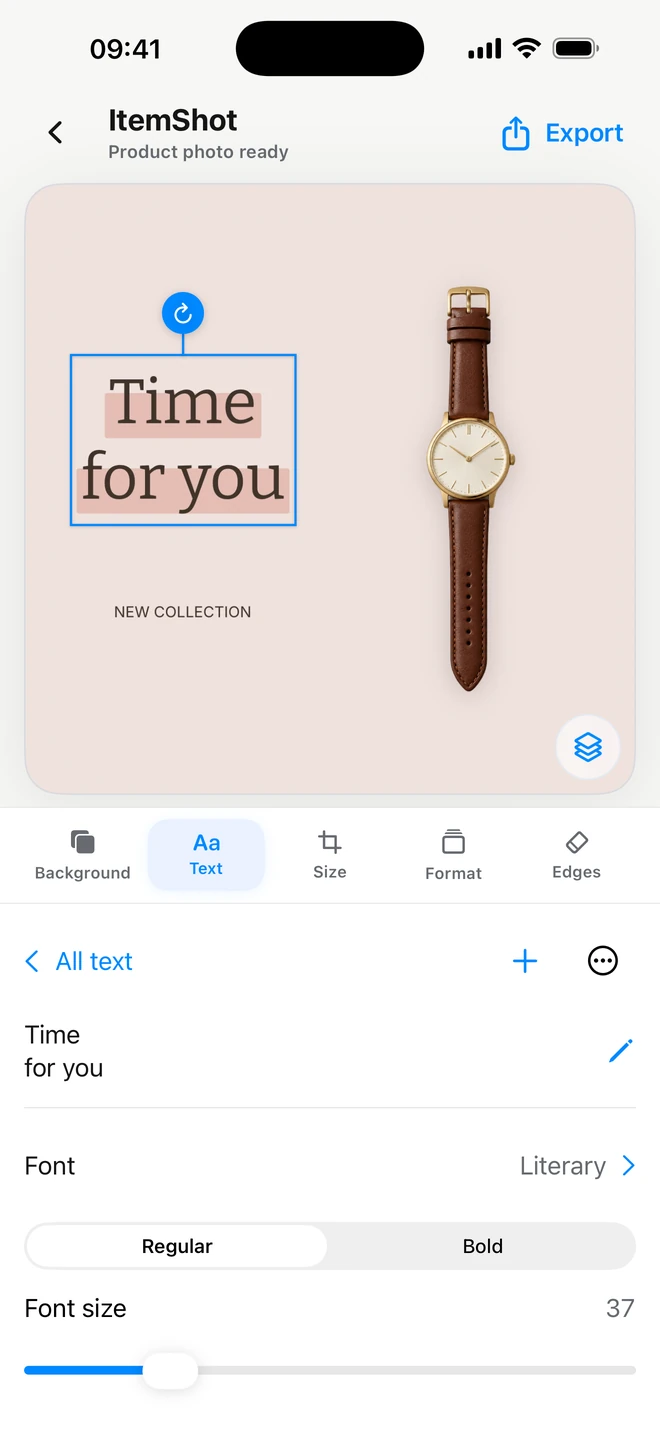
The Text tab lists your captions. Select one to edit, duplicate, bring forward or delete it. Each caption moves and rotates independently, so a headline and a smaller note do not need to share one text box.

For example

Combine a collection name, a small New label and a short line about the product.
Font, size, color and alignment

Give the wording the right character: a quiet caption, a strong headline or a small information label.

What you can adjust

  • Family and weight
  • Size and color
  • Width and alignment

Choose a font family, regular or bold weight, size and color. Text-box width controls wrapping, while alignment positions the lines. The font catalog considers your characters, so the available choice depends on language and writing-system support.

For example

Narrow the headline box to create two balanced lines beside the product.

Four text backdrops

A backdrop can reinforce the style or keep words readable over a busy photo. Turn it off when you want text alone.

What you can adjust

  • Rounded and Pill
  • Marker and Outline
  • Independent colors

Choose Rounded, Pill, Marker or Outline. Text and backdrop have independent colors. Marker highlights the lines, Outline keeps the inside transparent, and solid backdrops create a stronger accent. Text and all four styles are available without Pro.

For example

Use Pill for a short label, Marker for a key phrase or Outline for a lighter caption.

Rounded
Pill
Marker
Outline

Control the product, background and text separately

Choose a layer through Elements, or select the product or text on the canvas. The outline shows what you are editing.

What you can adjust

  • Move on the canvas
  • Scale
  • Rotate each element

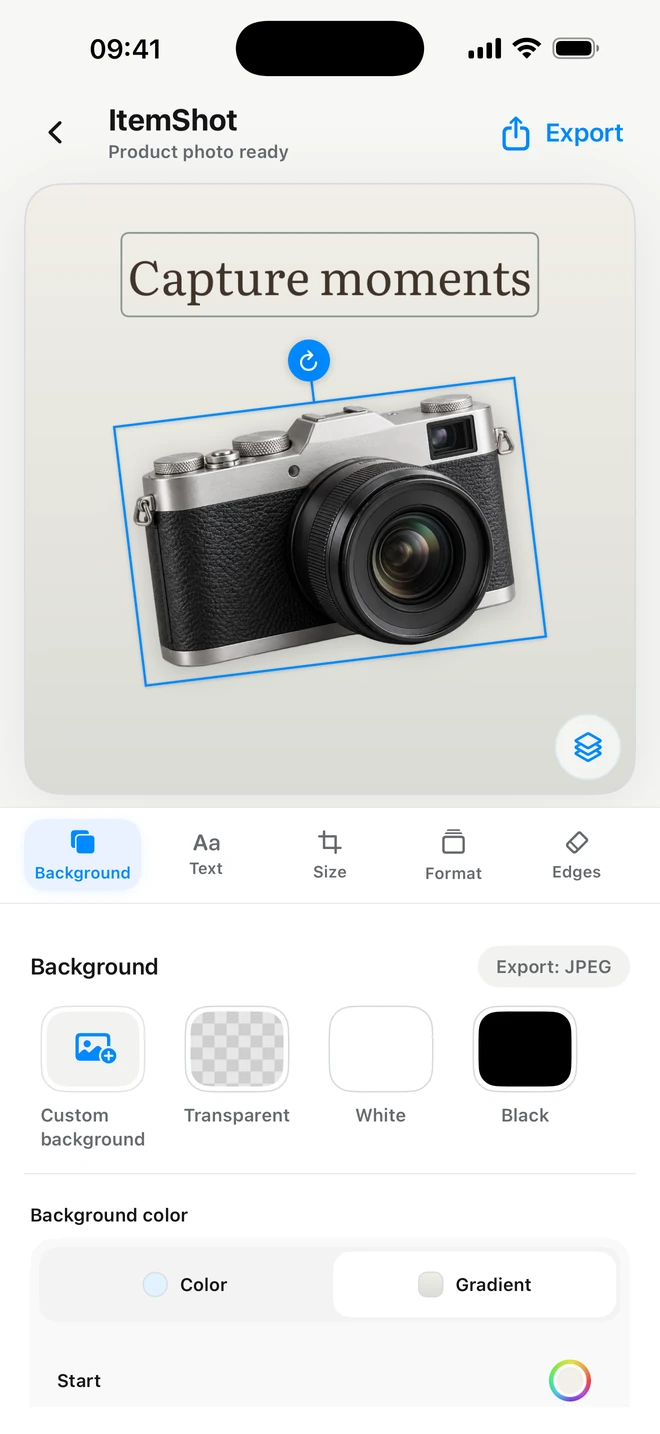
Move the selected element directly on the image. Scale and rotate with gestures, or use the rotation handle. Product, photo background and text keep independent positions. Choose the background explicitly through Elements when needed. A misplaced transformation can be undone.

For example

Move the product aside, rotate it slightly and leave room for a headline.

ItemShot on iPhone — Studio
Real app screens. Select one to see the details.

Projects, folders and returning to a photo

Keep finished and unfinished work in one library. A label on each card shows whether it belongs to Studio or Tools.

What you can adjust

  • Shared library
  • Folders and names
  • Editable settings

Create folders, organize work and reopen it with its settings. A saved project belongs to a specific photo. In Tools, ordinary project saving and repeat export are free; they are different from Pro settings reusable on new photos.

For example

Organize collections in folders and return to a photo to change its text or size.

JPEG or transparent PNG from Studio

Save the finished composition for a listing or export a transparent object for later use. There is no ItemShot watermark.

What you can adjust

  • JPEG and PNG
  • Transparent background
  • Standard or full resolution

JPEG suits a photo with a background; PNG also supports transparency. Free includes 10 Standard exports per calendar month, up to 2048 pixels on the longest side. Pro adds full-resolution output and removes the Standard export quota. Save the result to Photos, copy it to the clipboard or send it to Files and other apps through the system share sheet.

For example

Export a shop photo and keep a separate PNG for a future layout.

Good questions. Clear answers.

Do I need Pro to add text?

No. Text, font choices and text backdrops are available without Pro. Studio’s normal export limits still apply.

Can I edit an earlier caption?

Yes. Open the Text tab and select it from the list, or select the caption directly on the canvas.

Which parts are free?

Studio includes 10 Standard exports per calendar month at up to 2048 pixels. Single-photo Tools editing, saving and export have no monthly quota. Pro adds full-resolution Studio output, advanced editing, batches and saved settings.

Which formats can I export?

Studio exports JPEG and PNG, including transparent PNG. Tools converts between JPEG, PNG, HEIC and WebP. Outputs are re-encoded in SDR.

Make your next photo a better one.

Start with your own photo. Find its best angle in ItemShot.

Download on the App StoreFor iPhone · iOS 18 or later